
Guest WiFi for bank branches
Customer WiFi for bank branches, kept off your own network
The goal here is a quiet waiting area, not a marketing channel. Customers sign in with a one-time password on a plain page. One switch keeps them off your private networks. Their numbers stay masked from staff by default.
The short answer
Wyfy Guest is guest WiFi software for bank branches and service centres in India. Customers in the waiting area sign in with a one-time password (OTP) on a plain branded page. A firewall switch keeps them off private networks, numbers are masked from staff by default, and every branch runs from one dashboard.
Where branch WiFi usually goes wrong
A customer holding a token number is on a formal visit. The network around them has to feel as careful as the counter they are waiting for.
A shared password in a room full of strangers
Anyone who has heard it can use it, from anywhere in range, and the branch has no record of who was online.
Guest devices too close to branch systems
If guest WiFi is simply a second name on the office router, nobody can say with confidence how far apart the two networks are.
Customer numbers in plain view
A list of phone numbers on a screen at the front desk is the wrong thing to have on display in a branch.
How Wyfy Guest works at a branch
Set up to stay quiet. The branch head gets one dashboard. The IT team gets the settings below to review.
Guests kept off your private networks
Under Security > Firewall, turn on "Keep guests off your private networks". Guests can use the internet but cannot reach office computers, billing machines or cameras. This depends on your router supporting it.
A plain login page
Your name and logo, and an OTP by SMS, WhatsApp or email. Login Page Offers are optional. A branch can leave them off.
Numbers masked by default
Phone numbers and emails are masked on staff accounts by default. The setting is per account, under Staff Access. Turning it off on your own account takes an OTP.
Staff roles that match the branch
Under Staff Access, give each login a role, such as Reception Staff or Read Only, and a set of locations. A front-desk login need not come with network settings.
A record of who was online
Logs > Guest Connection Records shows who was online, on which device and for how long. The owner can run it for a date range and export it.
Limits that fit the waiting area
Under Network > Usage Limits, set a speed limit, devices per guest and a session timeout. Under Login Page > Open Hours, match the WiFi to your business hours. Under Security > Blocking, block websites by name, where your router supports it.
A plain answer for your IT team
Wyfy Guest is certified to ISO/IEC 27001:2022. Guest numbers are masked by default. Each OTP login is verified against a real number or inbox. Logs > Staff Activity records who changed what.
Every branch in one dashboard
Run one branch or many from one account. Alerts emails you when a site or an internet line goes down. A second line takes over by itself where one is connected.
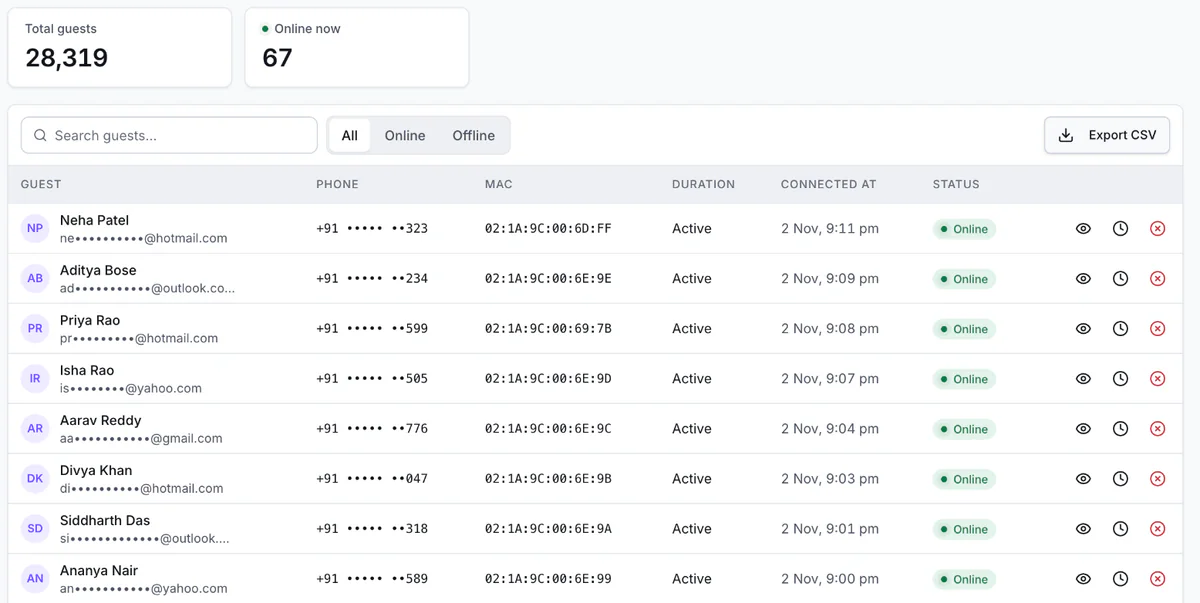
The guest list in a Wyfy Guest demo account: phone numbers and emails are masked by default.
How a branch gets started
- 01
Book a free demo
You see the dashboard and the guest login running, and tell us how many locations and routers you have. The demo is free; pricing is a quote built from your locations, routers and support level.
- 02
We check your existing router
Our team checks the router you already have and tells you plainly whether it is compatible. If it is, you keep it. If it is not, we recommend one that works, and you can buy it yourself or have us buy and set it up.
- 03
We set up your login page and limits
Your headline, logo, colours and sign-in methods go in under Login Page > Portal. Speed, device and time limits go in under Network > Usage Limits.
- 04
You run it from one dashboard
Every location sits under one account, on a laptop or a phone. Guests shows who is online. Alerts emails you if a site or an internet line goes down.
Want the longer version? These guides cover it:
- Bank branch Wi-Fi solutions for customer waiting areas
- Why guest phone numbers should be masked
- Staff roles for guest WiFi
Also on Wyfy Guest: Guest WiFi for hotels · Guest WiFi for cafes and restaurants · OTP WiFi login · Guest WiFi for retail and malls · Guest WiFi for gyms · Captive portal · Pricing
Questions
Bank branch WiFi, straight answers
Should a bank branch offer customer WiFi?
It can, as long as the customer network is separate from the branch's own systems and the login stays quiet. Customers waiting on a token number are the people it helps most.
Is customer WiFi connected to core banking systems?
It should not be, and Wyfy Guest has no connection to core banking: it handles guest logins and internet access only. Keeping guests away from your own devices is a setting: "Keep guests off your private networks", under Security > Firewall, where your router supports it. Your IT and security teams should review the setup against your own policies.
How do customers log in?
With an OTP by SMS, WhatsApp or email, or a voucher code from the front desk. You choose which methods each branch shows and whether to ask for a name, and staff accounts see a masked number by default.
Can branch staff have different levels of access?
Yes. Under Staff Access, each login gets a role, such as Reception Staff, Helpdesk or Read Only, and a set of locations.
Does Wyfy Guest guarantee regulatory compliance for a bank?
No. Wyfy Guest gives you the login record, the private-network switch and the access controls. Whether a setup meets your bank's obligations is for your own compliance team to decide.
How much does branch WiFi cost?
Wyfy Guest is quote-priced: the quote is built from your locations, routers and support level. There is no free trial, because a router has to be set up first, but a demo is free. The pricing page shows the plan tiers.
See a branch login page in a free demo.
We'll run the customer login, masked numbers and Staff Access on a real router, and quote your branches on the call.